White-Background Hero Shots for Amazon and Shopify Listings
White backgrounds aren't optional—they're a technical requirement with measurable consequences.

White-background hero shots for Amazon and Shopify listings are an engineering problem before they are a creative one. The image must show the real product as it is and meet requirements that can be measured. A repeatable workflow clears those requirements first, then makes the image compelling through accurate color, clear labels, consistent lighting, and disciplined framing.
Why Amazon's white-background rule is an engineering constraint, not a creative choice
A main image that misses Amazon’s requirements can suppress the listing, regardless of how polished the photography looks. An attractive composition cannot compensate for a noncompliant background, insufficient product fill, or an inaccurate label. Each needs its own check because meeting one requirement does not make up for missing another.
Amazon’s white-background rule serves the search-results page, where visual uniformity helps shoppers compare products quickly. On small mobile screens, a clear view of the product helps shoppers compare items more easily than a distinctive setting does. Off-white and light grey backgrounds that once passed are now consistently rejected in 2026, so almost no near-white background passes. The working target is therefore pure white.
Shopify imposes no equivalent photography restriction. Its image guidance covers file size and resolution, while white backgrounds are a common choice for catalogs that the platform does not require. That difference supports designing for Amazon first instead of maintaining separate standards for the same hero shot. An image that clears Amazon’s standard also satisfies the less restrictive use case on Shopify and Etsy.
The exact technical parameters Amazon enforces
The background must be pure white, without gradients, drop shadows, or near-white approximations. The product must occupy at least 85% of the image frame. Added text, logos, badges, watermarks, and promotional graphics are prohibited. Those overlay restrictions are separate from the product’s actual printed label or packaging, which the image must represent truthfully.
The file must use the sRGB color profile and be no larger than 10 MB. Accepted formats are JPEG, TIFF, PNG, and non-animated GIF, with JPEG preferred. The production target for this workflow is 2000×2000 px, with 1000×1000 px as the minimum used in the final review. A 1:1 square is strongly recommended because Amazon displays images in a square container and pads non-square uploads. Amazon’s general image requirements allow different aspect ratios, so the square format is a workflow standard.
Truthful representation applies to the product itself. Labels, buttons, packaging details, colors, and shapes must match the item being sold. An AI-generated detail that differs from the physical product is a compliance risk even when the background and file settings are correct. That requirement makes source-asset quality the next constraint to resolve.
What a usable source asset looks like before any AI tool touches it
A usable input is a clean product cutout on a transparent background. When the source contains clutter or obscured detail, generation can fill the gaps with invented logos, label text, or packaging shapes. Background removal must therefore precede scene generation. Asking a tool to replace only the background of a styled original leaves the product exposed to the same interpretation problem.
Use the highest-resolution original available because enhancement is limited to improving perceived sharpness and cleaning the background, with product detail dependent on what was originally captured. Inspect the source cutout at full size before generation, particularly the label and packaging edges. Soft or warped label text can become unreadable or misrepresented across every generated variant, turning an upstream defect into repeated compliance work.
Before generation, set a color reference with a physical sample photo or a brand swatch under daylight. This matters especially for skincare and food products, where AI white balance tends to drift warm. The reference gives the later fidelity check a fixed comparison. Keep the working asset out of repeated JPEG export cycles, since exporting, editing, and re-exporting compounds compression artifacts. Export once from the editor at the final size.
How the production workflow runs from cutout to compliant export
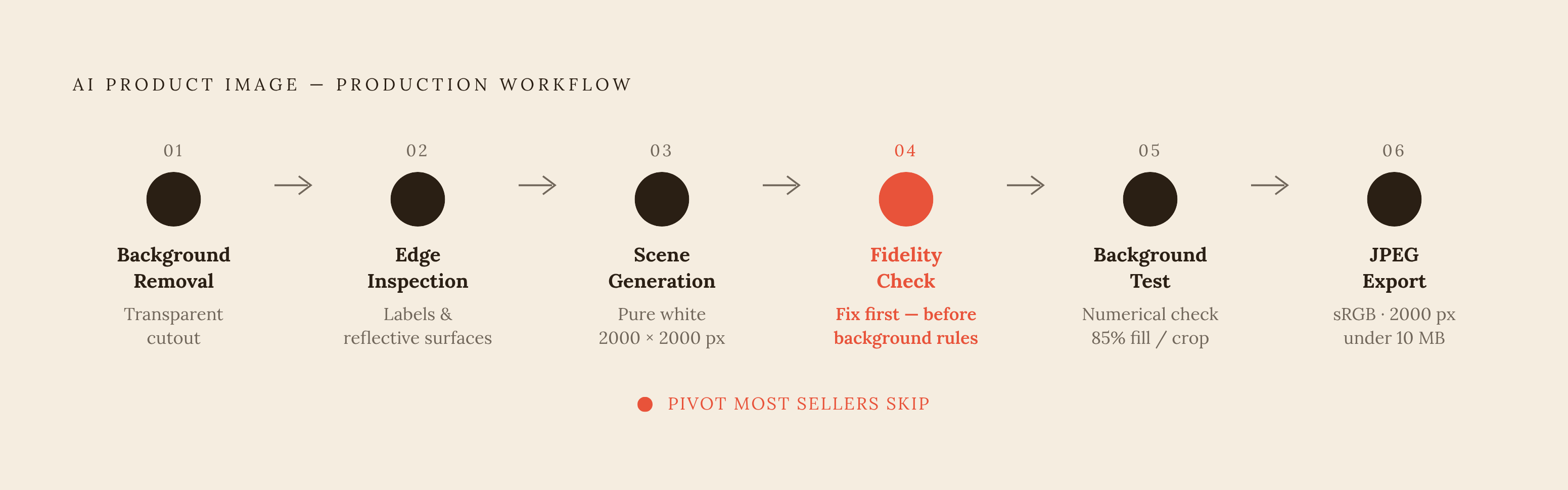
Production begins with background removal and a transparent product cutout. Inspect the isolated edges before proceeding, with particular attention to transparent packaging and reflective surfaces. Once the cutout is sound, feed it into scene generation with pure white, 2000×2000 px, and 1:1 specified as explicit output constraints. The output of this stage is a candidate image.
The next check is product fidelity. Put the generated image next to the physical sample photo or approved brand reference and check how the labels, colors, materials, and packaging shapes match. Fix any differences before spending time checking that the background meets the rules. A perfect white field cannot make an invented packaging detail acceptable.
Then test the background numerically with a color picker. The target is pure white, and a background that appears white still needs measurement. Follow that check with the fill and crop review, confirming that the product occupies at least 85% of the square frame. Resize or recompose if the product falls short.
Finish with a single JPEG export in sRGB at 2000×2000 px and under 10 MB. The exported file must still pass the final review because it is the asset that will be submitted. Keep work on lifestyle scenes, ad treatments, and other secondary images separate from these steps for the main image. Those outputs can use the same approved product asset without changing the hero shot’s constraints.
Which AI tools handle which jobs in this workflow
For locked product fidelity across white-background, studio, lifestyle, and ad formats, ProductShot AI centers its workflow on “lock the product, then generate the scene”. It preserves the logo, shape, labels, packaging, color, and material while rebuilding the environment. Marketplace presets cover Amazon, Shopify, and Etsy, while reference-image inputs guide brand mood and reusable image history supports A/B testing. Lens-language presets provide different photographic treatments. Some modules, including batch processing, remain marked “Soon”, and the product is web-only with no mobile app.
For text and packaging preservation, Pebblely uses the visible copy in the source image during generation. Pebblely’s official how-to page states that it “automatically extracts all visible text from your product image, including brand names, ingredients, dosage info”. For catalog automation, Claid and Photoroom Ultra tier have batch processing that uses the same settings across images.
For Shopify-centered production spanning product photos, static ads, and video variations, CreatorKit combines those outputs in one platform. For direct API use where the seller is prepared to build the pipeline, GPT Image 2 supports creative scenes and text rendering, with reference images billed at the high-fidelity rate. For packaging mockups, Pacdora produces 3D box, bag, bottle, and pouch renders that can serve as static Shopify listing images. Its documented role does not extend to 3D/AR product-page embedding.
Across these choices, compositing actual product pixels carries lower hallucination risk than generating the product from text alone. Photoroom, Pebblely, Claid, and Flair support that compositing approach. Never let generation redraw the product from a text prompt without re-compositing the real cutout on top. When several tools or brands share the workflow, Bloom’s brand-context role helps keep their approved references in sync.
How to keep AI output on-brand at the product level — color, labels, and material accuracy
Even when the white background meets the rules, the product in it can have the wrong color, changed copy, or a changed surface. The fidelity review must check the product on its own, apart from the setting. Tool choice does not remove this obligation.
Correct color drift at the source-reference stage. Warm white balance can make reds look more orange and whites look more cream, especially in skincare, food, and light-colored products. For SKU variants, establish one approved lighting treatment and angle, then apply them identically across color options. Relighting and re-angling each colorway makes variants within one range look like separate products.
Inspect generated labels at full size and compare the text character by character against the physical product. Readable text is not necessarily correct text, and a sharp thumbnail can conceal invented wording or wrong claims. Check glass, chrome, transparent packaging, and fabric weave at full resolution because generation is especially likely to get these surfaces wrong. Approve the still before producing video derivatives, since warped labels in the still carry into those outputs.
Close the review with the physical reference test. Put the generated image next to a physical sample photo or Pantone/brand swatch reference under daylight. Compare color, material, packaging shape, and label details directly. No automated tool replaces human judgment on whether the depicted product matches the approved reference.
Scaling this workflow across multiple SKUs, variants, and brands without re-doing the compliance work each time
A rebrand, reformulation, or packaging change can leave downstream generation producing the old product without an obvious workflow failure. The approved reference has changed, but a tool still using the previous asset continues to generate outdated images. This is the strongest reason to version brand context. Updates must start at the source and reach every generation process that uses it.
Establish one approved hero-shot template per brand, with fixed crop, fill percentage, lighting reference, and background specification. Reuse that template as the constraint for later runs, replacing re-prompting from scratch for every SKU. Batch processing can apply the same crop and enhancement settings mechanically, reducing per-image decisions. For Amazon hero shots, the shared configuration must also retain the no-drop-shadow requirement. Consistency is useful only when the setting being repeated is compliant.
Teams that work with several brands need separate references because shared defaults can carry one brand’s colors, materials, or style into another brand’s output. Those cross-contamination errors are hard to spot when there are many images to check. A canonical source of approved palettes, reference images, and style rules gives connected tools a common, current input without mixing brand identities. Bloom’s Brand Skill layer is designed for this role, making brand context versioned and retrievable via API or MCP.
The operational test is whether a new SKU or brand variant can reach a compliant, on-brand hero shot without a person re-entering brand specifications. That removes the repeated setup work that otherwise reintroduces hallucination and color-drift risks, while product-level QA remains necessary. Without reusable context, AI-assisted production can approach the cost of traditional studio work through repeated correction.
The final QA gate before any image goes live on Amazon or Shopify
The final gate applies to the exported file. Open the JPEG in a color picker. Sample the background in at least three corners and the center wherever the background is visible. Confirm that the background is pure white. Treat this as a measurement task rather than a visual impression, since a near-white background can look acceptable while missing the required value.
Next, use the crop tool or a grid overlay to confirm at least 85% product fill on both axes. Check for whitespace concentrated in a corner rather than assuming that a product which looks large is large enough. Confirm 2000×2000 px, or at minimum 1000×1000 px, together with JPEG format, sRGB, and a file size under 10 MB. Zoom to full size. Scan all four edges and corners for surviving text, badges, watermarks, or graphics. Complete the gate with a side-by-side comparison against the physical product or approved reference.
If the RGB check fails, return to generation with an explicit pure-white constraint and regenerate. Do not patch the generated output with a Photoshop fill, since that can introduce flat areas that differ from the surrounding white and may still fail detection. Once the image passes the Amazon gate, it can be published to Shopify without a separate review. The stricter production standard has already done the work.